はじめに
HoloLensアドベントカレンダー2020 の6日目の記事です。
開発環境
- Azure
- Computer Vision API(画像分析 API)
- Speech SDK 1.14.0
- Unity 2019.4.1f1
- MRTK 2.5.1
- Windows 10 PC
- HoloLens2
導入
1.前回の 記事 まで終わらせてください。
2. Speech SDKを設定する(Unity) から Microsoft.CognitiveServices.Speech.1.14.0.unitypackage をダウンロードし、インポートします。


3.Azureポータルから音声を作成し、場所とキーをメモっておいてください。

4. スピーカー出力に合成する を参考にTapToCaptureAnalyzeAPI.csを編集します。画像分析APIで得られた画像説明文をSpeech SDKのsynthesizer.SpeakTextAsyncに投げます。
1TapToCaptureAnalyzeAPI.cs
2using System.Collections;
3using System.Collections.Generic;
4using System.Linq;
5using System;
6using UnityEngine;
7using Microsoft.MixedReality.Toolkit.Utilities;
8using System.Threading.Tasks;
9using OpenCVForUnity.CoreModule;
10using OpenCVForUnity.UnityUtils;
11using OpenCVForUnity.ImgprocModule;
12
13// SpeechSDK 追加分ここから
14using System.IO;
15using System.Text;
16using Microsoft.CognitiveServices.Speech;
17using Microsoft.CognitiveServices.Speech.Audio;
18// SpeechSDK 追加分ここまで
19
20public class TapToCaptureAnalyzeAPI : MonoBehaviour
21{
22
23    // SpeechSDK 追加分ここから
24    public AudioSource audioSource;
25    async Task SynthesizeAudioAsync(string text)
26    {
27        var config = SpeechConfig.FromSubscription("YourSubscriptionKey", "YourServiceRegion");
28        var synthesizer = new SpeechSynthesizer(config, null); // nullを省略するとPCのスピーカーから出力されるが、HoloLensでは出力されない。
29
30        // https://github.com/Azure-Samples/cognitive-services-speech-sdk/blob/master/quickstart/csharp/unity/text-to-speech/Assets/Scripts/HelloWorld.cs
31        // Starts speech synthesis, and returns after a single utterance is synthesized.
32        using (var result = synthesizer.SpeakTextAsync(text).Result)
33        {
34            // Checks result.
35            if (result.Reason == ResultReason.SynthesizingAudioCompleted)
36            {
37                // Native playback is not supported on Unity yet (currently only supported on Windows/Linux Desktop).
38                // Use the Unity API to play audio here as a short term solution.
39                // Native playback support will be added in the future release.
40                var sampleCount = result.AudioData.Length / 2;
41                var audioData = new float[sampleCount];
42                for (var i = 0; i < sampleCount; ++i)
43                {
44                    audioData[i] = (short)(result.AudioData[i * 2 + 1] << 8 | result.AudioData[i * 2]) / 32768.0F;
45                }
46
47                // The output audio format is 16K 16bit mono
48                var audioClip = AudioClip.Create("SynthesizedAudio", sampleCount, 1, 16000, false);
49                audioClip.SetData(audioData, 0);
50                audioSource.clip = audioClip;
51                audioSource.Play();
52
53                // newMessage = "Speech synthesis succeeded!";
54            }
55            else if (result.Reason == ResultReason.Canceled)
56            {
57                var cancellation = SpeechSynthesisCancellationDetails.FromResult(result);
58                // newMessage = $"CANCELED:\nReason=[{cancellation.Reason}]\nErrorDetails=[{cancellation.ErrorDetails}]\nDid you update the subscription info?";
59            }
60        }
61    }
62    // SpeechSDK 追加分ここまで
63
64    public GameObject quad;
65
66    [System.Serializable]
67    public class Analyze
68    {
69        public Categories[] categories;
70        public Color color;
71        public Description description;
72        public string requestId;
73        public Metadata metadata;
74    }
75
76    [System.Serializable]
77    public class Categories
78    {
79        public string name;
80        public float score;
81    }
82
83    [System.Serializable]
84    public class Color
85    {
86        public string dominantColorForeground;
87        public string dominantColorBackground;
88        public string[] dominantColors;
89        public string accentColor;
90        public bool isBwImg;
91        public bool isBWImg;
92    }
93
94    [System.Serializable]
95    public class Description
96    {
97        public string[] tags;
98        public Captions[] captions;
99    }
100
101    [System.Serializable]
102    public class Captions
103    {
104        public string text;
105        public float confidence;
106    }
107
108    [System.Serializable]
109    public class Metadata
110    {
111        public int height;
112        public int width;
113        public string format;
114    }
115
116    UnityEngine.Windows.WebCam.PhotoCapture photoCaptureObject = null;
117    Texture2D targetTexture = null;
118
119    private string endpoint = "https:///vision/v3.1/analyze";
120    private string subscription_key = "";
121    private bool waitingForCapture;
122
123    void Start(){
124        waitingForCapture = false;
125    }
126
127    public void AirTap()
128    {
129        if (waitingForCapture) return;
130        waitingForCapture = true;
131
132        Resolution cameraResolution = UnityEngine.Windows.WebCam.PhotoCapture.SupportedResolutions.OrderByDescending((res) => res.width * res.height).First();
133        targetTexture = new Texture2D(cameraResolution.width, cameraResolution.height);
134
135        // PhotoCapture オブジェクトを作成します
136        UnityEngine.Windows.WebCam.PhotoCapture.CreateAsync(false, delegate (UnityEngine.Windows.WebCam.PhotoCapture captureObject) {
137            photoCaptureObject = captureObject;
138            UnityEngine.Windows.WebCam.CameraParameters cameraParameters = new UnityEngine.Windows.WebCam.CameraParameters();
139            cameraParameters.hologramOpacity = 0.0f;
140            cameraParameters.cameraResolutionWidth = cameraResolution.width;
141            cameraParameters.cameraResolutionHeight = cameraResolution.height;
142            cameraParameters.pixelFormat = UnityEngine.Windows.WebCam.CapturePixelFormat.BGRA32;
143
144            // カメラをアクティベートします
145            photoCaptureObject.StartPhotoModeAsync(cameraParameters, delegate (UnityEngine.Windows.WebCam.PhotoCapture.PhotoCaptureResult result) {
146                // 写真を撮ります
147                photoCaptureObject.TakePhotoAsync(OnCapturedPhotoToMemoryAsync);
148            });
149        });
150    }
151
152    async void OnCapturedPhotoToMemoryAsync(UnityEngine.Windows.WebCam.PhotoCapture.PhotoCaptureResult result, UnityEngine.Windows.WebCam.PhotoCaptureFrame photoCaptureFrame)
153    {
154        // ターゲットテクスチャに RAW 画像データをコピーします
155        photoCaptureFrame.UploadImageDataToTexture(targetTexture);
156        byte[] bodyData = targetTexture.EncodeToJPG();
157
158        Response response = new Response();
159
160        try
161        {
162            string query = endpoint + "?visualFeatures=Categories,Description,Color";
163            var headers = new Dictionary<string, string>();
164            headers.Add("Ocp-Apim-Subscription-Key", subscription_key);
165            response = await Rest.PostAsync(query, bodyData, headers, -1, true);
166        }
167        catch (Exception e)
168        {
169            photoCaptureObject.StopPhotoModeAsync(OnStoppedPhotoMode);
170            return;
171        }
172
173        if (!response.Successful)
174        {
175            photoCaptureObject.StopPhotoModeAsync(OnStoppedPhotoMode);
176            return;
177        }
178
179        Debug.Log(response.ResponseCode);
180        Debug.Log(response.ResponseBody);
181        Analyze analyze = JsonUtility.FromJson(response.ResponseBody);
182        Debug.Log(analyze.description.captions[0].text);
183
184        // SpeechSDK 追加分ここから
185        // 生成された画像説明文をSynthesizeAudioAsyncに投げる
186        await SynthesizeAudioAsync(analyze.description.captions[0].text);
187        // SpeechSDK 追加分ここまで
188
189        // OpenCVを用いて結果をて画像に書き込み
190        Mat imgMat = new Mat(targetTexture.height, targetTexture.width, CvType.CV_8UC4);
191        Utils.texture2DToMat(targetTexture, imgMat);
192        Debug.Log("imgMat.ToString() " + imgMat.ToString());
193        Imgproc.putText(imgMat, analyze.description.captions[0].text, new Point(10, 100), Imgproc.FONT_HERSHEY_SIMPLEX, 4.0, new Scalar(255, 255, 0, 255), 4, Imgproc.LINE_AA, false);
194        Texture2D texture = new Texture2D(imgMat.cols(), imgMat.rows(), TextureFormat.RGBA32, false);
195        Utils.matToTexture2D(imgMat, texture);
196        Renderer quadRenderer = quad.GetComponent() as Renderer;
197        quadRenderer.material.SetTexture("_MainTex", texture);
198
199        // カメラを非アクティブにします
200        photoCaptureObject.StopPhotoModeAsync(OnStoppedPhotoMode);
201    }
202
203    void OnStoppedPhotoMode(UnityEngine.Windows.WebCam.PhotoCapture.PhotoCaptureResult result)
204    {
205        // photo capture のリソースをシャットダウンします
206        photoCaptureObject.Dispose();
207        photoCaptureObject = null;
208        waitingForCapture = false;
209    }
210}
5.SpeechConfig.FromSubscriptionにキーと場所をコピペしてください。
6.最初は、synthesizer.SpeakTextAsyncでAudioConfigパラメーターを省略するだけでスピーカーから出力されるので行けると思ったのですが、HoloLensでは出力されませんでした。
1static async Task SynthesizeAudioAsync()
2{
3    var config = SpeechConfig.FromSubscription("YourSubscriptionKey", "YourServiceRegion");
4    using var synthesizer = new SpeechSynthesizer(config);
5    await synthesizer.SpeakTextAsync("Synthesizing directly to speaker output.");
6}
7.そこで、InternetClientServer と PrivateNetworkClientServer の機能を有効にしたり、MixedRealityToolkitの 音声コマンドの設定 をしてみたり、
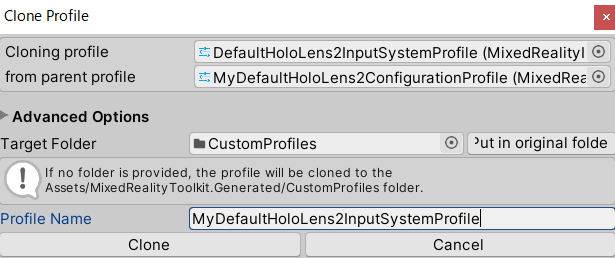
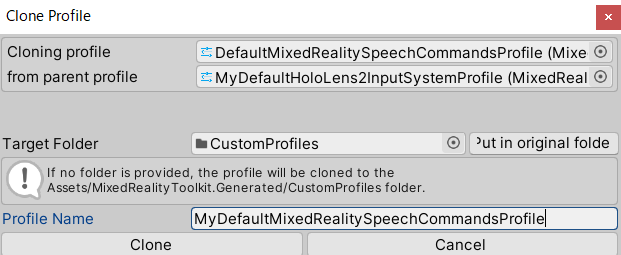
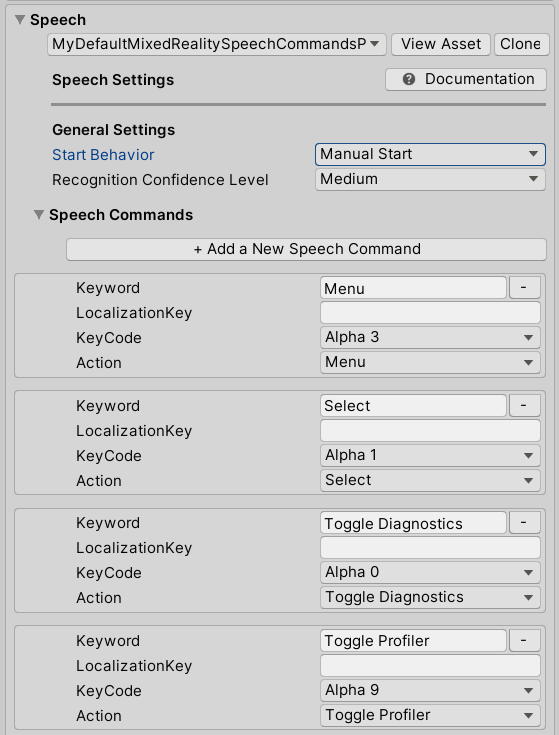
音声認識と文字起こしには Speech SDK を使用するため、Speech SDK の機能の妨げにならないように、MRTK の音声コマンドを構成する必要があります。 これを実現するには、音声コマンドの開始動作を Auto Start から Manual Start に変更することができます。
Hierarchy ウィンドウで MixedRealityToolkit オブジェクトを選択した状態で、Inspector ウィンドウで Input タブを選択し、DefaultHoloLens2InputSystemProfile と DefaultMixedRealitySpeechCommandsProfile を複製し、音声コマンドの Start Behavior を Manual Start に変更します。
 |
 |
 |
ARM64でビルドしたりしたのですが、関係ありませんでした。
8.調べた結果 【Unity】Microsoft Azure を用いてキャラクターを流暢に話させる
や cognitive-services-speech-sdkのHelloWorld.cs を参考に、音声合成結果をAudioSourceのclipに割り当てる必要がありました。
9.あとはTapToCaptureAnalyzeにAudioSourceをAdd Componentし、TapToCaptureAnalyzeAPIのAudioSourceにTapToCaptureAnalyzeをD&Dしてアタッチします。

実行
“a hand holding a fanned out money” 札束を持つ手
スタートアップ夢の扉のヌンギルが完成しました!
明日は、弟子( @Horomoto-Asahi )による「MRTK関連で何かを書く」です。