続いてUnityの設定を行っていきたいと思います。以下の手順で進めていきましょう。
1.Unityを開き、[New]から新しいプロジェクトをつくる。
名前をMRAzureFunctionsとして、[Create project]をクリックします。

- [Build Settings..]からさまざまな項目を編集していく。
[File]->[Build Settings..]を開きます。
a.プラットフォームの変更
[PC, Mac & Linux Standalone]を[Universal Windows Platform]に変更し、[Switch Platform]をクリックします

[Player Settings..]をクリックします。

そのあと[Other Settings]、[Publishing Settings]->[Capabilities]、[XR Settings]を以下のように設定してきます。


続いて、[Unity C#]にチェックを入れます。

1. Sceneの保存
[Add Open Scenes]をクリックし、[新しいフォルダー]からScenesと名前をつけて、この中にFunctionSceneとして保存します。
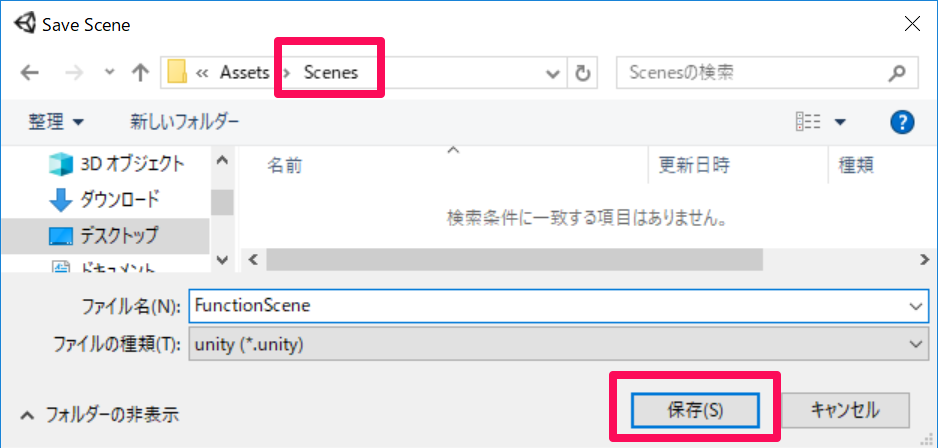
[Build Settings..]の変更は以上です。
2. パッケージのインポート
まず、 Azure-MR-305.unitypackage をダウンロードします。[Assets]->[Import Package]->[Custom Package]をクリックします。ダウンロードしたAzure-MR-305.unitypackageをフォルダの中から探し選択し、[Import]をクリックします。

- インポートした中身を確認する。
・Microsoft.Data.Edm
・Microsoft.Data.OData
・Microsoft.WindowsAzure.Storage
・Newtonsoft.Json
・System.Spatial
・Microsoft.Data.Edm
・Microsoft.Data.OData
・Microsoft.WindowsAzure.Storage
・Newtonsoft.Json
・System.Spatial
の中身を確認していきます。Editor,Standalone,WebGLにチェックを入れそれ以外のチェックを外し、[Apply]をクリックします。
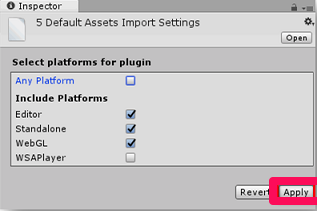
続いて ・Microsoft.Data.Services.Clientの中身を確認していきます。Any Platform,Don’t process にチェックを入れそれ以外のチェックを外し、[Apply]をクリックします。

2.カメラ、シーンの編集
まず[Hierarchy]->[Main Camera]の[Inspector]を編集していきたいと思います。
Transform
Position | X : 0 | Y : 1 | Z : 0
Rotation | 全て0
Scale | 全て1
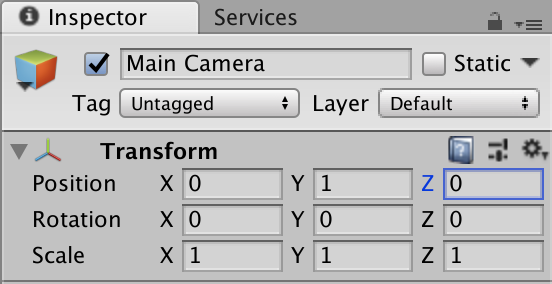
続いてシーン内に以下の二つのオブジェクトを配置していきます。
・土台(Plane)
・Gaze Button(Cube) これは様々な物体を生み出すためのトリガーとなります。
1. 土台を配置する。
a. [Hierarchy]パネルの何もないところで右クリックし、[3D Object]->[Plane]を選択します。
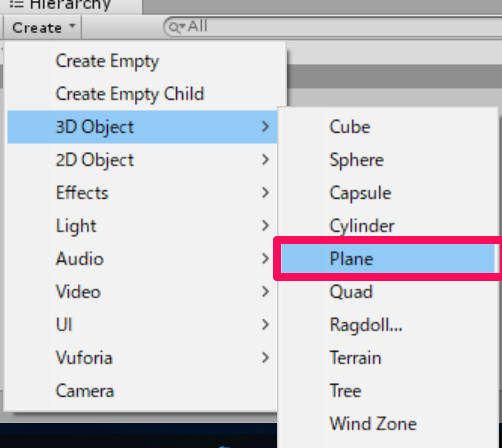
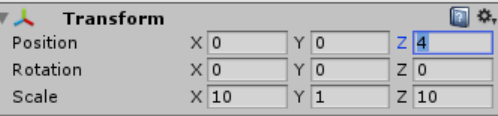
b. 今作った[Plane]の[Inspector] を編集していきます。
Transform
—————————————–
Position | X : 0 | Y : 0 | Z : 4
—————————————–
Rotation | 全て0
—————————————–
Scale | X : 10 | Y : 1 | Z : 10
—————————————–
2. Gaze Buttonを配置する。
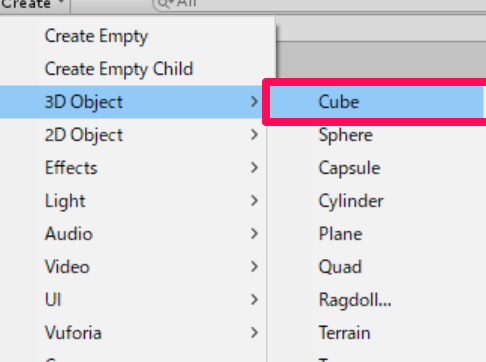
a. [Hierarchy]パネルの何もないところで右クリックし、[3D Object]->[Cube]を選択します。
b. 今作った[Cube]の[Inspector] を編集していきます。
Transform
Position | X : 0 | Y : 3 | Z : 5
Rotation | 全て0
Scale | 全て1
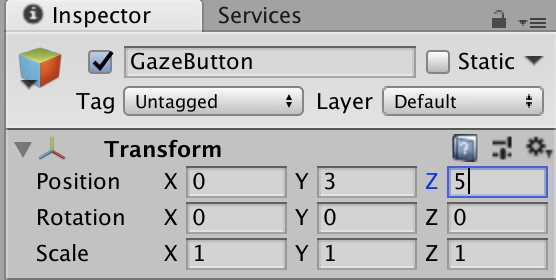
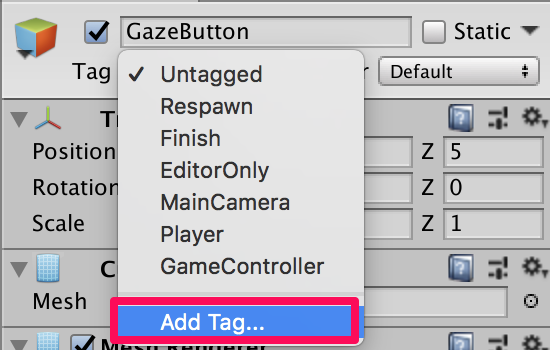
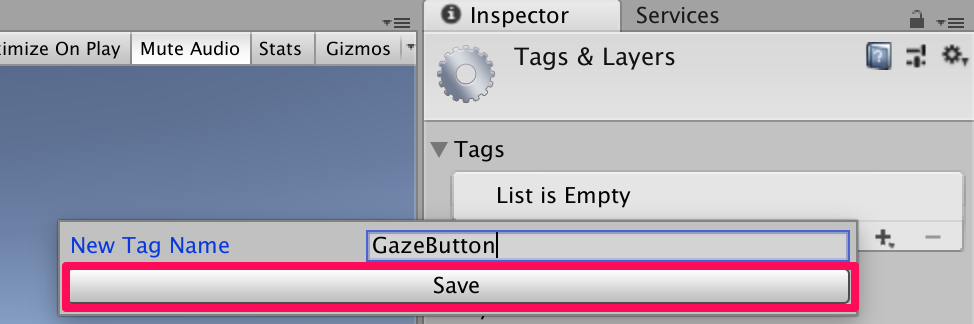
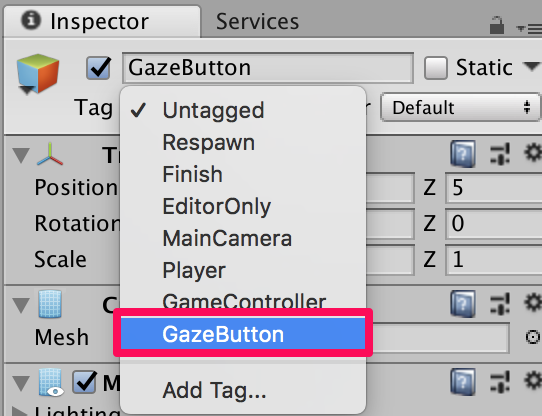
TagがUntaggedとなっていますので、[Add Tag..]からタグを追加します。名前はGazeButtonとします。このままではタグが追加されただけなので、再びタグを選択リストを選び先ほど追加したGazeButtonを選択します。

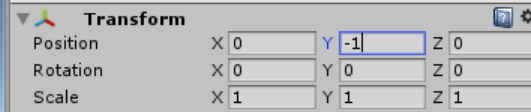
c. 今作ったCubeの名前をGazeButtonと変更し、この中に子オブジェクトとして[Empty GameObject]を追加します。またこの名前をShapeSpawnPointとします。これは様々な図形を生成する際の位置となります。この[Inspector]を編集していきたいと思います。
Transform
Position | X : 0 | Y : -1 | Z : 0
Rotation | 全て0
Scale | 全て1
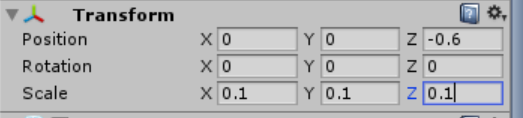
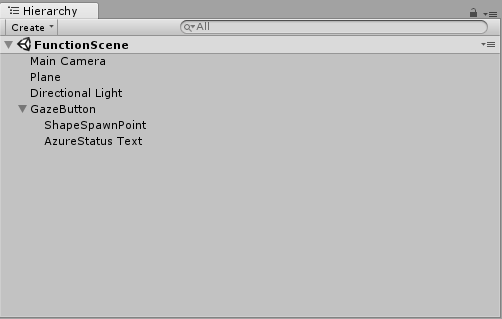
d. GazeButtonの子オブジェクトとして[3D Object]->[3D Text]としてテキストを作り、名前をAzureStatus Textとします。これは、現在のステータスを表示するのに使います。この[Inspector]を編集します。
Transform
Position | X : 0 | Y : 0 | Z : -0.6
Rotation | 全て0
Scale | 全て0.1
Text Mesh
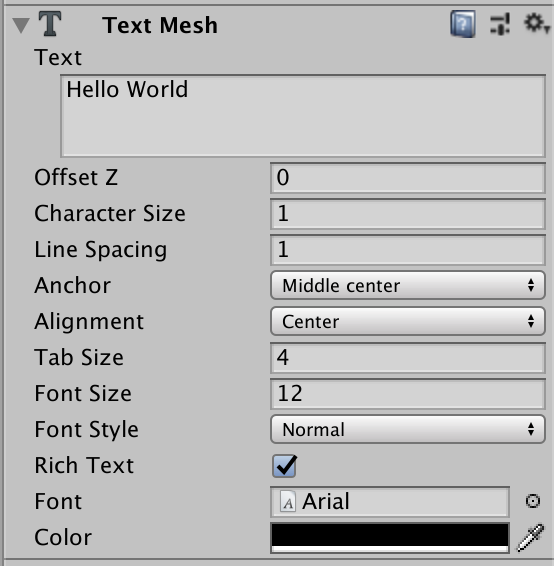
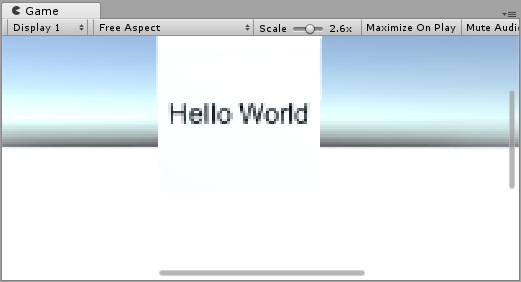
テキストの位置がおかしいと思ったら微調整しましょう。このようになっていれば大丈夫です。
3.スクリプトの作成
ここでは以下の4つのスクリプトを作っていきたいと思います。
・ShapeFactory
・Gaze
・AzureServices
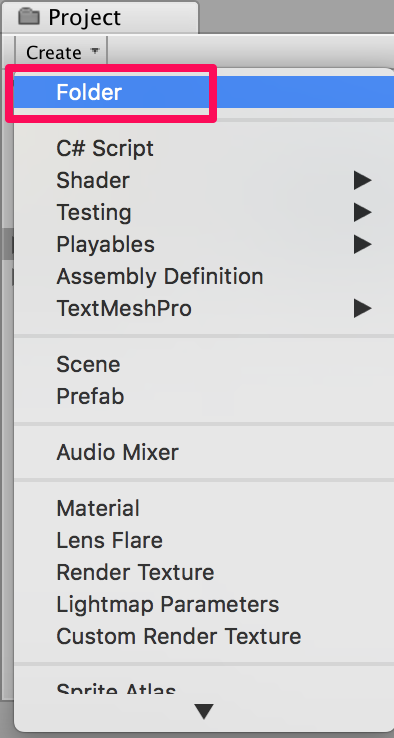
スクリプトの作り方はまず、すべてのスクリプトをまとめておくフォルダーを作成します。[Project]->[Create]をクリックし、[Folder]を選択して新しいフォルダーを作ります。名前をScriptsとします。続いて[Project]->[Create]->[C# Script]をクリックし、クラス名をつけていきます。
このクラスは要請があるたびに新しい図形を作ります。そして、作った図形の履歴をAzure Storageに保存します。コードは以下のように記述します。
using System.Collections;
using System.Collections.Generic;
using UnityEngine;
public class ShapeFactory : MonoBehaviour {
/// <summary>
/// Provide this class Singleton-like behaviour
/// </summary>
[HideInInspector]
public static ShapeFactory instance;
/// <summary>
/// Provides an Inspector exposed reference to ShapeSpawnPoint
/// </summary>
[SerializeField]
public Transform spawnPoint;
/// <summary>
/// Shape History Index
/// </summary>
[HideInInspector]
public List<int> shapeHistoryList;
/// <summary>
/// Shapes Enum for selecting required shape
/// </summary>
private enum Shapes { Cube, Sphere, Cylinder }
private void Awake()
{
instance = this;
}
private void Start()
{
shapeHistoryList = new List<int>();
}
/// <summary>
/// Use the Shape Enum to spawn a new Primitive object in the scene
/// </summary>
/// <param name="shape">Enumerator Number for Shape</param>
/// <param name="storageShape">Provides whether this is new or old</param>
internal void CreateShape(int shape, bool storageSpace)
{
Shapes primitive = (Shapes)shape;
GameObject newObject = null;
string shapeText = storageSpace == true ? "Storage: " : "New: ";
AzureServices.instance.azureStatusText.text = string.Format("{0}{1}", shapeText, primitive.ToString());
switch (primitive)
{
case Shapes.Cube:
newObject = GameObject.CreatePrimitive(PrimitiveType.Cube);
break;
case Shapes.Sphere:
newObject = GameObject.CreatePrimitive(PrimitiveType.Sphere);
break;
case Shapes.Cylinder:
newObject = GameObject.CreatePrimitive(PrimitiveType.Cylinder);
break;
}
if (newObject != null)
{
newObject.transform.position = spawnPoint.position;
newObject.transform.localScale = new Vector3(0.5f, 0.5f, 0.5f);
newObject.AddComponent<Rigidbody>().useGravity = true;
newObject.GetComponent<Renderer>().material.color = UnityEngine.Random.ColorHSV(0f, 1f, 1f, 1f, 0.5f, 1f);
}
}
}
記述し終わったら保存してUnityの画面に戻り、このスクリプトを[Hierarchy]->[Main Camera]にD&Dします。そのあと、[Main Camera]の[Inspector]内で追加された[Shape Factory]の[Spawn Point]に[Hierarchy]内の[ShapeSpawnPoint]をD&Dします。

このクラスはユーザーの視線を認識するためのクラスです。Gaze Buttonを見たとき、トリガーを引きます。コードは以下の通りです。
using System.Collections;
using System.Collections.Generic;
using UnityEngine;
public class Gaze : MonoBehaviour {
/// <summary>
/// Provides Singleton-like behavior to this class.
/// </summary>
public static Gaze instance;
/// <summary>
/// The Tag which the Gaze will use to interact with objects. Can also be set in editor.
/// </summary>
public string InteractibleTag = "GazeButton";
/// <summary>
/// The layer which will be detected by the Gaze ('~0' equals everything).
/// </summary>
public LayerMask LayerMask = ~0;
/// <summary>
/// The Max Distance the gaze should travel, if it has not hit anything.
/// </summary>
public float GazeMaxDistance = 300;
/// <summary>
/// The size of the cursor, which will be created.
/// </summary>
public Vector3 CursorSize = new Vector3(0.05f, 0.05f, 0.05f);
/// <summary>
/// The color of the cursor - can be set in editor.
/// </summary>
public Color CursorColour = Color.HSVToRGB(0.0223f, 0.7922f, 1.000f);
/// <summary>
/// Provides when the gaze is ready to start working (based upon whether
/// Azure connects successfully).
/// </summary>
internal bool GazeEnabled = false;
/// <summary>
/// The currently focused object.
/// </summary>
internal GameObject FocusedObject { get; private set; }
/// <summary>
/// The object which was last focused on.
/// </summary>
internal GameObject _oldFocusedObject { get; private set; }
/// <summary>
/// The info taken from the last hit.
/// </summary>
internal RaycastHit HitInfo { get; private set; }
/// <summary>
/// The cursor object.
/// </summary>
internal GameObject Cursor { get; private set; }
/// <summary>
/// Provides whether the raycast has hit something.
/// </summary>
internal bool Hit { get; private set; }
/// <summary>
/// This will store the position which the ray last hit.
/// </summary>
internal Vector3 Position { get; private set; }
/// <summary>
/// This will store the normal, of the ray from its last hit.
/// </summary>
internal Vector3 Normal { get; private set; }
/// <summary>
/// The start point of the gaze ray cast.
/// </summary>
private Vector3 _gazeOrigin;
/// <summary>
/// The direction in which the gaze should be.
/// </summary>
private Vector3 _gazeDirection;
/// <summary>
/// The method used after initialization of the scene, though before Start().
/// </summary>
private void Awake()
{
// Set this class to behave similar to singleton
instance = this;
}
/// <summary>
/// Start method used upon initialization.
/// </summary>
private void Start()
{
FocusedObject = null;
Cursor = CreateCursor();
}
/// <summary>
/// Method to create a cursor object.
/// </summary>
/// <returns></returns>
private GameObject CreateCursor()
{
GameObject newCursor = GameObject.CreatePrimitive(PrimitiveType.Sphere);
newCursor.SetActive(false);
// Remove the collider, so it doesn't block raycast.
Destroy(newCursor.GetComponent<SphereCollider>());
newCursor.transform.localScale = CursorSize;
newCursor.GetComponent<MeshRenderer>().material = new Material(Shader.Find("Diffuse"))
{
color = CursorColour
};
newCursor.name = "Cursor";
newCursor.SetActive(true);
return newCursor;
}
/// <summary>
/// Called every frame
/// </summary>
private void Update()
{
if (GazeEnabled == true)
{
_gazeOrigin = Camera.main.transform.position;
_gazeDirection = Camera.main.transform.forward;
UpdateRaycast();
}
}
private void UpdateRaycast()
{
// Set the old focused gameobject.
_oldFocusedObject = FocusedObject;
RaycastHit hitInfo;
// Initialise Raycasting.
Hit = Physics.Raycast(_gazeOrigin,
_gazeDirection,
out hitInfo,
GazeMaxDistance, LayerMask);
HitInfo = hitInfo;
// Check whether raycast has hit.
if (Hit == true)
{
Position = hitInfo.point;
Normal = hitInfo.normal;
// Check whether the hit has a collider.
if (hitInfo.collider != null)
{
// Set the focused object with what the user just looked at.
FocusedObject = hitInfo.collider.gameObject;
}
else
{
// Object looked on is not valid, set focused gameobject to null.
FocusedObject = null;
}
}
else
{
// No object looked upon, set focused gameobject to null.
FocusedObject = null;
// Provide default position for cursor.
Position = gazeOrigin + (gazeDirection * GazeMaxDistance);
// Provide a default normal.
Normal = _gazeDirection;
}
// Lerp the cursor to the given position, which helps to stabilize the gaze.
Cursor.transform.position = Vector3.Lerp(Cursor.transform.position, Position, 0.6f);
// Check whether the previous focused object is this same
// object. If so, reset the focused object.
if (FocusedObject != _oldFocusedObject)
{
ResetFocusedObject();
if (FocusedObject != null)
{
if (FocusedObject.CompareTag(InteractibleTag.ToString()))
{
// Set the Focused object to green - success!
FocusedObject.GetComponent<Renderer>().material.color = Color.green;
// Start the Azure Function, to provide the next shape!
AzureServices.instance.CallAzureFunctionForNextShape();
}
}
}
}
/// <summary>
/// Reset the old focused object, stop the gaze timer, and send data if it
/// is greater than one.
/// </summary>
private void ResetFocusedObject()
{
// Ensure the old focused object is not null.
if (_oldFocusedObject != null)
{
if (_oldFocusedObject.CompareTag(InteractibleTag.ToString()))
{
// Set the old focused object to red - its original state.
_oldFocusedObject.GetComponent<Renderer>().material.color = Color.red;
}
}
}
}
このスクリプトも同様に[Main Camera]にD&Dします。
・AzureServices
このクラスはAzure App Functionとやり取りするためのクラスです。また、ステータスによってテキストの文字を変える役割も担っています。コードは以下の通りです。先ほど0.準備で取得した接続文字列とURLを使います。–Insert here・・・の部分に適切に接続文字列とURLを挿入していきます。
using System.Collections;
using System.Collections.Generic;
using UnityEngine;
using System;
using System.Threading.Tasks;
using Microsoft.WindowsAzure.Storage;
using Microsoft.WindowsAzure.Storage.File;
using System.IO;
using System.Net;
public class AzureServices : MonoBehaviour {
/// <summary>
/// Provides Singleton-like behavior to this class.
/// </summary>
public static AzureServices instance;
/// <summary>
/// Reference Target for AzureStatusText Text Mesh object
/// </summary>
public TextMesh azureStatusText;
/// <summary>
/// Holds the Azure Function endpoint - Insert your Azure Function
/// Connection String here.
/// </summary>
private readonly string azureFunctionEndpoint = "--Insert your 関数のURL--";
/// <summary>
/// Holds the Storage Connection String - Insert your Azure Storage
/// Connection String here.
/// </summary>
private readonly string storageConnectionString = "--Insert your 接続文字列--";
/// <summary>
/// Name of the Cloud Share - Hosts directories.
/// </summary>
private const string fileShare = "fileshare";
/// <summary>
/// Name of a Directory within the Share
/// </summary>
private const string storageDirectory = "storagedirectory";
/// <summary>
/// The Cloud File
/// </summary>
private CloudFile shapeIndexCloudFile;
/// <summary>
/// The Linked Storage Account
/// </summary>
private CloudStorageAccount storageAccount;
/// <summary>
/// The Cloud Client
/// </summary>
private CloudFileClient fileClient;
/// <summary>
/// The Cloud Share - Hosts Directories
/// </summary>
private CloudFileShare share;
/// <summary>
/// The Directory in the share that will host the Cloud file
/// </summary>
private CloudFileDirectory dir;
private void Awake()
{
instance = this;
}
// Use this for initialization
private void Start()
{
// Disable TLS cert checks only while in Unity Editor (until Unity adds support for TLS)
#if UNITY_EDITOR
ServicePointManager.ServerCertificateValidationCallback = delegate { return true; };
#endif
// Set the Status text to loading, whilst attempting connection to Azure.
azureStatusText.text = "Loading...";
//Creating the references necessary to log into Azure and check if the Storage Directory is empty
CreateCloudIdentityAsync();
}
/// <summary>
/// Call to the Azure Function App to request a Shape.
/// </summary>
public async void CallAzureFunctionForNextShape()
{
int azureRandomInt = 0;
// Call Azure function
HttpWebRequest webRequest = WebRequest.CreateHttp(azureFunctionEndpoint);
WebResponse response = await webRequest.GetResponseAsync();
// Read response as string
using (Stream stream = response.GetResponseStream())
{
StreamReader reader = new StreamReader(stream);
String responseString = reader.ReadToEnd();
//parse result as integer
Int32.TryParse(responseString, out azureRandomInt);
}
//add random int from Azure to the ShapeIndexList
ShapeFactory.instance.shapeHistoryList.Add(azureRandomInt);
ShapeFactory.instance.CreateShape(azureRandomInt, false);
//Save to Azure storage
await UploadListToAzureAsync();
}
/// <summary>
/// Create the references necessary to log into Azure
/// </summary>
private async void CreateCloudIdentityAsync()
{
// Retrieve storage account information from connection string
storageAccount = CloudStorageAccount.Parse(storageConnectionString);
// Create a file client for interacting with the file service.
fileClient = storageAccount.CreateCloudFileClient();
// Create a share for organizing files and directories within the storage account.
await share.CreateIfNotExistsAsync();
// Get a reference to the root directory of the share.
CloudFileDirectory root = share.GetRootDirectoryReference();
// Create a directory under the root directory
dir = root.GetDirectoryReference(storageDirectory);
await dir.CreateIfNotExistsAsync();
//Check if the there is a stored text file containing the list
shapeIndexCloudFile = dir.GetFileReference("TextShapeFile");
if (!await shapeIndexCloudFile.ExistsAsync())
{
// File not found, enable gaze for shapes creation
Gaze.instance.GazeEnabled = true;
azureStatusText.text = "No Shape\nFile!";
}
else
{
// The file has been found, disable gaze and get the list from the file
Gaze.instance.GazeEnabled = false;
azureStatusText.text = "Shape File\nFound!";
await ReplicateListFromAzureAsync();
}
}
/// <summary>
/// Upload the locally stored List to Azure
/// </summary>
private async Task UploadListToAzureAsync()
{
// Uploading a local file to the directory created above
string listToString = string.Join(",", ShapeFactory.instance.shapeHistoryList.ToArray());
await shapeIndexCloudFile.UploadTextAsync(listToString);
}
///<summary>
/// Get the List stored in Azure and use the data retrieved to replicate
/// a Shape creation pattern
///</summary>
private async Task ReplicateListFromAzureAsync()
{
string azureTextFileContent = await shapeIndexCloudFile.DownloadTextAsync();
string[] shapes = azureTextFileContent.Split(new char[] { ',' });
foreach (string shape in shapes)
{
int i;
Int32.TryParse(shape.ToString(), out i);
ShapeFactory.instance.shapeHistoryList.Add(i);
ShapeFactory.instance.CreateShape(i, true);
await Task.Delay(500);
}
Gaze.instance.GazeEnabled = true;
azureStatusText.text = "Load Complete!";
}
}
記述し終わったら保存してUnityの画面に戻り、このスクリプトを[Hierarchy]->[Main Camera]にD&Dします。そのあと、[Main Camera]の[Inspector]内で追加された[Azure Services]の[Azure Status Text]に[Hierarchy]内の[AzureStatus Text]をD&Dします。

4.ビルド
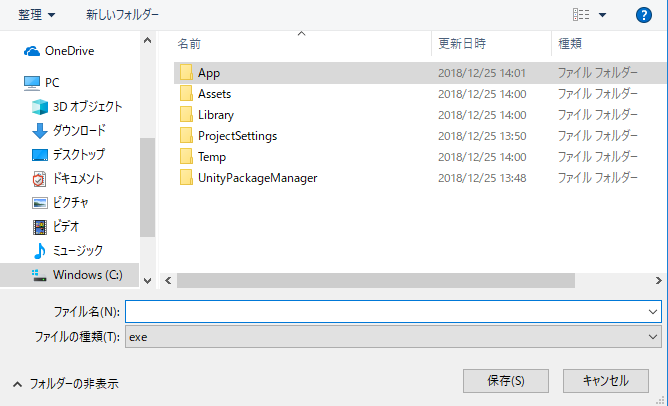
[File]->[Build Settings..]->[Build]の順に選択します。新しいフォルダー(App)を作ります。このフォルダーを選択し、保存します。
この後の手順についてはこちらを参照してください。
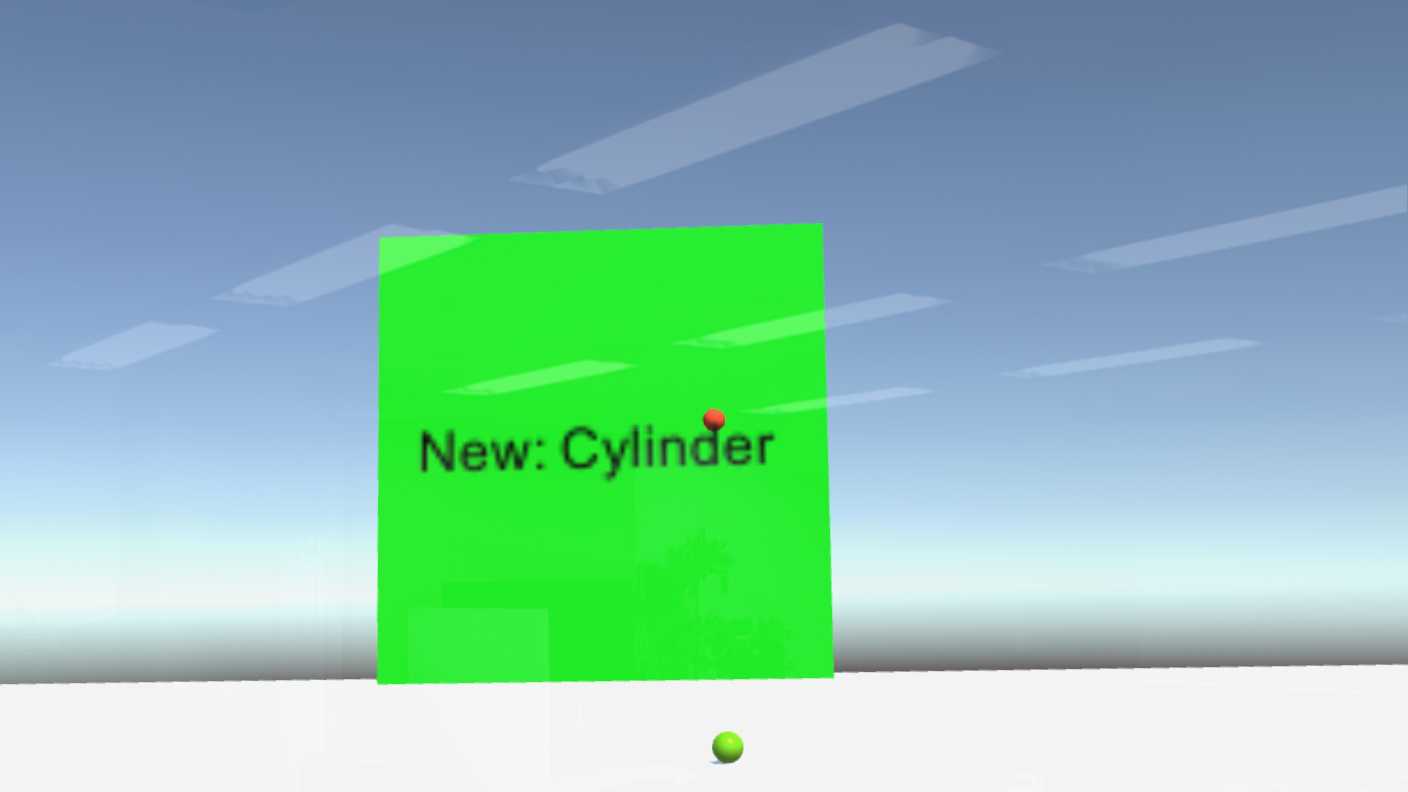
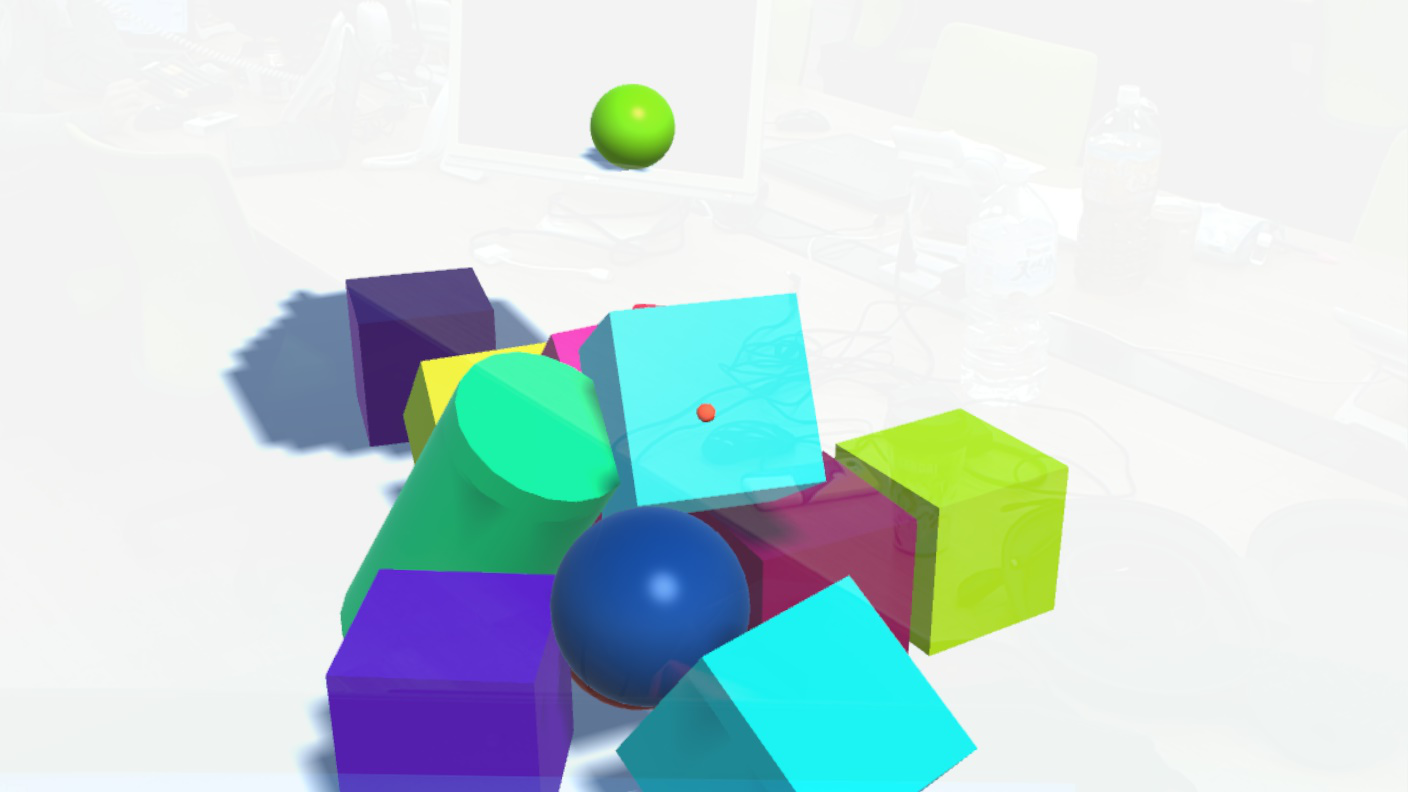
HoloLensで実行した時の様子です。Gazeに合わせて図形が生成されているのがわかります
以上となります。 お疲れ様でした。