2. カメラの編集
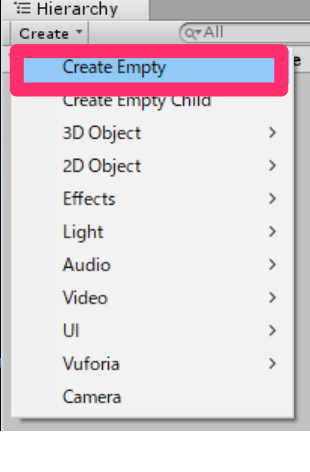
1. [Hierarchy]->[Create]->[Create Empty]でゲームオブジェクトを作り、名前をCamera Parentとします。
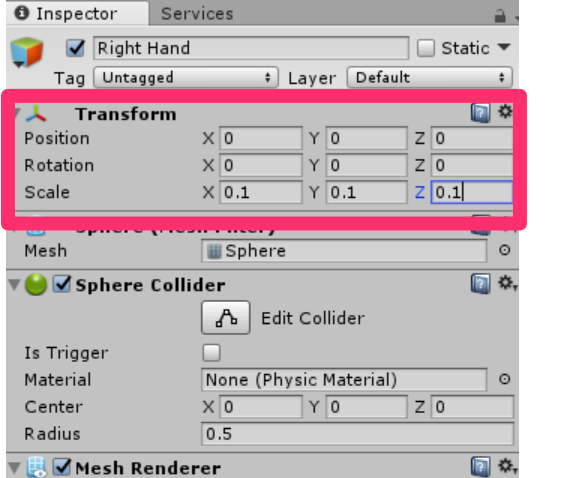
2. [Hierarchy]->[Create]->[3D Object]->[Sphere]として球を作り、名前をRight Handとします。このRight Handの[Inspector]から
a. [Transform]
Position | 全て0
Rotation | 全て0
Scale | 全て0.1
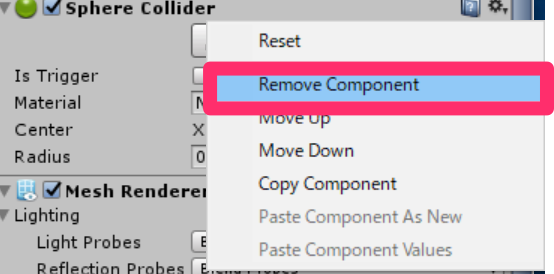
b. [Sphere Collider]を削除
[Sphere Collider]の歯車マークから[Remove Component]をクリックします。
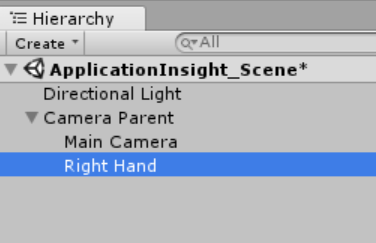
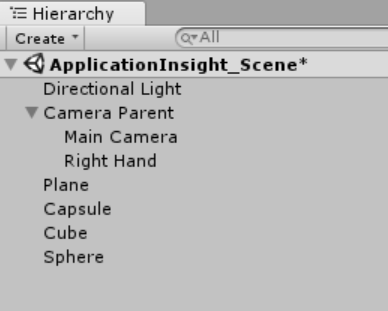
3. 今作成した[Right Hand]と[Main Camera]を、今作った[Camera Parent]の子オブジェクトにします。移動したいオブジェクトを[Camera Parent]にD&Dで、移動できます。以下のようになればオッケーです。
3.オブジェクトの作成
ここでは土台、球、正方形、カプセルを配置していきます。また、後ろの三つのオブジェクトにタグをつけていきます。
2. 土台の配置
[Hierarchy]->[Create]->[3D Object]->[Plane]で作り、[Inspector]パネルを編集していきます。
Transform
Position | X : 0 | Y : -1 | Z : 0
Rotation | 全て0
Scale | X : 5 | Y : 1 | Z : 5

続いてこの土台に色をつけていきたいと思います。
[Project]->[Create]->[Material]とし名前をBlueとします。このBlueマテリアルを選択し、[Inspector]を編集していきたいと思います。[Main Maps]の[Albedo]という項目から色を変えます。今回は仮に#3592ffffとします。


今作成したBlueマテリアルを先ほど作った土台(Plane)にD&Dします。

3. 球の配置
[Hierarchy]パネル内で先ほどと同様にして3D Objectの[Sphere]を作ります。この[Inspector]を
Transform
Position | X : 5 | Y : 0 | Z : 0
Rotation | 全て0
Scale | 全て1

4. 正方形の配置
[Hierarchy]パネル内で先ほどと同様にして3D Objectの[Sphere]を作ります。この[Inspector]を
Transform
—————————————–
Position | X : 0 | Y : 0 | Z : 5
—————————————–
Rotation | 全て0
Scale | 全て1

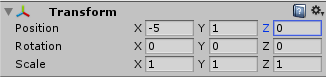
5. カプセルの配置
[Hierarchy]パネル内で先ほどと同様にして3D Objectの[Sphere]を作ります。この[Inspector]を
Transform
—————————————–
Position | X : -5 | Y : 1 | Z : 0
—————————————–
Rotation | 全て0
—————————————–
Scale | 全て1
[Hierarchy]パネルがこのようになっているはずです。
5. タグづけ
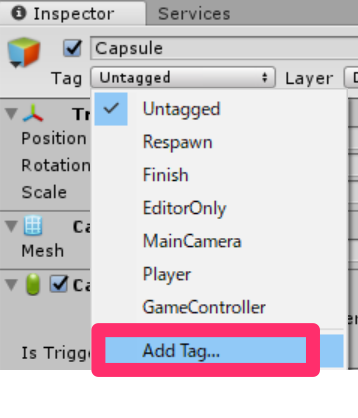
今作ったSphere,Cube,Capsulの中からどれでも良いので一つ選び、[Inspector]->[Tag]から[Add Tag..]でタグを追加していきます。名前はObjectInSceneとします。これではタグを作っただけなので、再び[Inspector]->[Tag]で[ObjectInScene]を選択します。

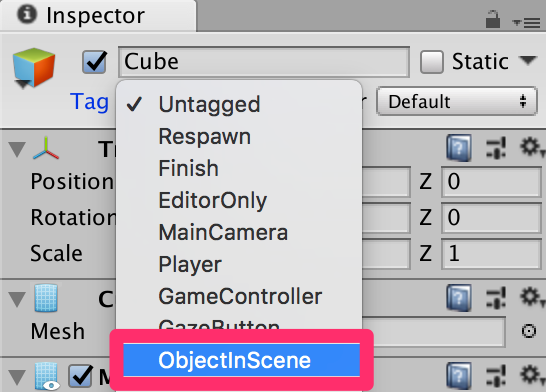
残りの二つのオブジェクトにも同様のタグをつけます。これによってスクリプトでタグのついたオブジェクトの挙動を制御できるようになります。
4.スクリプトの作成
ここでは以下の5つのクラスを作っていきます。
・ApplicationInsightsTracker
・Gaze
・ObjectTrigger
・DataFromAnalytics
・Movement
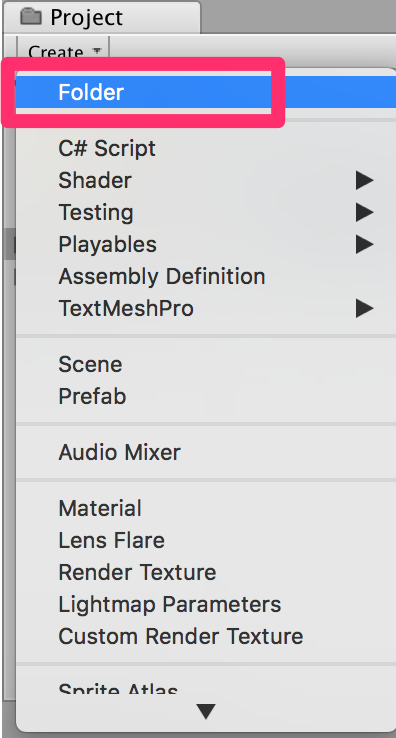
スクリプトの作り方はまず、すべてのスクリプトをまとめておくフォルダーを作成します。[Project]->[Create]をクリックし、[Folder]を選択して新しいフォルダーを作ります。名前をScriptsとします。続いて[Project]->[Create]->[C# Script]をクリックし、クラス名をつけていきます。
このクラスはユーザーの動きに合わせて、Azure Application Insightsに情報を送信する役割を担います。コードは以下の通りです。ここでインストルメンテーションキーとアプリケーションIDとAPIキーが必要です。コード内のInsert・・・に適切にこれらを入れます。
using System.Collections;
using System.Collections.Generic;
using UnityEngine;
using Microsoft.ApplicationInsights;
using Microsoft.ApplicationInsights.DataContracts;
using Microsoft.ApplicationInsights.Extensibility;
public class ApplicationInsightsTracker : MonoBehaviour {
/// <summary>
/// Allows this class to behavior like a singleton
/// </summary>
public static ApplicationInsightsTracker Instance;
/// <summary>
/// Insert your Instrumentation Key here
/// </summary>
internal string instrumentationKey = "--Insert your インストルメンテーションキー--";
/// <summary>
/// Insert your Application Id here
/// </summary>
internal string applicationId = "--Insert your アプリケーションID--";
/// <summary>
/// Insert your API Key here
/// </summary>
internal string API_Key = "--Insert your APIキー--";
/// <summary>
/// Represent the Analytic Custom Event object
/// </summary>
private TelemetryClient telemetryClient;
/// <summary>
/// Represent the Analytic object able to host gaze duration
/// </summary>
private MetricTelemetry metric;
/// <summary>
/// Sets this class instance as a singleton
/// </summary>
void Awake()
{
Instance = this;
}
/// <summary>
/// Use this for initialization
/// </summary>
void Start()
{
// Instantiate telemetry and metric
telemetryClient = new TelemetryClient();
metric = new MetricTelemetry();
// Assign the Instrumentation Key to the Event and Metric objects
TelemetryConfiguration.Active.InstrumentationKey = instrumentationKey;
telemetryClient.InstrumentationKey = instrumentationKey;
}
/// <summary>
/// Submit the Event to Azure Analytics using the event trigger object
/// </summary>
public void RecordProximityEvent(string objectName)
{
telemetryClient.TrackEvent(CreateEventName(objectName));
}
/// <summary>
/// Uses the name of the object involved in the event to create
/// and return an Event Name convention
/// </summary>
public string CreateEventName(string name)
{
string eventName = $"User near {name}";
return eventName;
}
/// <summary>
/// Submit a Metric to Azure Analytics using the metric gazed object
/// and the time count of the gaze
/// </summary>
public void RecordGazeMetrics(string objectName, int time)
{
// Output Console information about gaze.
Debug.Log($"Finished gazing at {objectName}, which went for <b>{time}</b> second{(time != 1 ? "s" : "")}");
metric.Name = $"Gazed {objectName}";
metric.Value = time;
telemetryClient.TrackMetric(metric);
}
}
・Gaze
このクラスはユーザーの視点に関する情報を記憶したりするためのクラスです。コードは以下の通りです。
using System.Collections;
using System.Collections.Generic;
using UnityEngine;
public class Gaze : MonoBehaviour {
/// <summary>
/// Provides Singleton-like behavior to this class.
/// </summary>
public static Gaze Instance;
/// <summary>
/// Provides a reference to the object the user is currently looking at.
/// </summary>
public GameObject FocusedGameObject { get; private set; }
/// <summary>
/// Provides whether an object has been successfully hit by the raycast.
/// </summary>
public bool Hit { get; private set; }
/// <summary>
/// Provides a reference to compare whether the user is still looking at
/// the same object (and has not looked away).
/// </summary>
private GameObject _oldFocusedObject = null;
/// <summary>
/// Max Ray Distance
/// </summary>
private float _gazeMaxDistance = 300;
/// <summary>
/// Max Ray Distance
/// </summary>
private float _gazeTimeCounter = 0;
/// <summary>
/// The cursor object will be created when the app is running,
/// this will store its values.
/// </summary>
private GameObject _cursor;
private void Awake()
{
// Set this class to behave similar to singleton
Instance = this;
_cursor = CreateCursor();
}
void Start()
{
FocusedGameObject = null;
}
/// <summary>
/// Create a cursor object, to provide what the user
/// is looking at.
/// </summary>
/// <returns></returns>
private GameObject CreateCursor()
{
GameObject newCursor = GameObject.CreatePrimitive(PrimitiveType.Sphere);
// Remove the collider, so it does not block raycast.
Destroy(newCursor.GetComponent<SphereCollider>());
newCursor.transform.localScale = new Vector3(0.1f, 0.1f, 0.1f);
newCursor.GetComponent<MeshRenderer>().material.color =
Color.HSVToRGB(0.0223f, 0.7922f, 1.000f);
newCursor.SetActive(false);
return newCursor;
}
/// <summary>
/// Called every frame
/// </summary>
void Update()
{
// Set the old focused gameobject.
_oldFocusedObject = FocusedGameObject;
RaycastHit hitInfo;
// Initialize Raycasting.
Hit = Physics.Raycast(Camera.main.transform.position, Camera.main.transform.forward, out hitInfo, _gazeMaxDistance);
// Check whether raycast has hit.
if (Hit == true)
{
// Check whether the hit has a collider.
if (hitInfo.collider != null)
{
// Set the focused object with what the user just looked at.
FocusedGameObject = hitInfo.collider.gameObject;
// Lerp the cursor to the hit point, which helps to stabilize the gaze.
cursor.transform.position = Vector3.Lerp(cursor.transform.position, hitInfo.point, 0.6f);
_cursor.SetActive(true);
}
else
{
// Object looked on is not valid, set focused gameobject to null.
FocusedGameObject = null;
_cursor.SetActive(false);
}
}
else
{
// No object looked upon, set focused gameobject to null.
FocusedGameObject = null;
_cursor.SetActive(false);
}
// Check whether the previous focused object is this same object. If so, reset the focused object.
if (FocusedGameObject != _oldFocusedObject)
{
ResetFocusedObject();
}
// If they are the same, but are null, reset the counter.
else if (FocusedGameObject == null && _oldFocusedObject == null)
{
_gazeTimeCounter = 0;
}
// Count whilst the user continues looking at the same object.
else
{
_gazeTimeCounter += Time.deltaTime;
}
}
/// <summary>
/// Reset the old focused object, stop the gaze timer, and send data if it
/// is greater than one.
/// </summary>
public void ResetFocusedObject()
{
// Ensure the old focused object is not null.
if (_oldFocusedObject != null)
{
// Only looking for objects with the correct tag.
if (_oldFocusedObject.CompareTag("ObjectInScene"))
{
// Turn the timer into an int, and ensure that more than zero time has passed.
int gazeAsInt = (int)_gazeTimeCounter;
if (gazeAsInt > 0)
{
//Record the object gazed and duration of gaze for Analytics
ApplicationInsightsTracker.Instance.RecordGazeMetrics(_oldFocusedObject.name, gazeAsInt);
}
//Reset timer
_gazeTimeCounter = 0;
}
}
}
}
・ObjectTrigger
このクラスは、シーン内のキューブ、カプセル、球のうちカメラがどれの近くにいるのかを判断するのに使います。コードは以下の通りです。
using System.Collections;
using System.Collections.Generic;
using UnityEngine;
public class Gaze : MonoBehaviour {
/// <summary>
/// Provides Singleton-like behavior to this class.
/// </summary>
public static Gaze Instance;
/// <summary>
/// Provides a reference to the object the user is currently looking at.
/// </summary>
public GameObject FocusedGameObject { get; private set; }
/// <summary>
/// Provides whether an object has been successfully hit by the raycast.
/// </summary>
public bool Hit { get; private set; }
/// <summary>
/// Provides a reference to compare whether the user is still looking at
/// the same object (and has not looked away).
/// </summary>
private GameObject _oldFocusedObject = null;
/// <summary>
/// Max Ray Distance
/// </summary>
private float _gazeMaxDistance = 300;
/// <summary>
/// Max Ray Distance
/// </summary>
private float _gazeTimeCounter = 0;
/// <summary>
/// The cursor object will be created when the app is running,
/// this will store its values.
/// </summary>
private GameObject _cursor;
private void Awake()
{
// Set this class to behave similar to singleton
Instance = this;
_cursor = CreateCursor();
}
void Start()
{
FocusedGameObject = null;
}
/// <summary>
/// Create a cursor object, to provide what the user
/// is looking at.
/// </summary>
/// <returns></returns>
private GameObject CreateCursor()
{
GameObject newCursor = GameObject.CreatePrimitive(PrimitiveType.Sphere);
// Remove the collider, so it does not block raycast.
Destroy(newCursor.GetComponent<SphereCollider>());
newCursor.transform.localScale = new Vector3(0.1f, 0.1f, 0.1f);
newCursor.GetComponent<MeshRenderer>().material.color =
Color.HSVToRGB(0.0223f, 0.7922f, 1.000f);
newCursor.SetActive(false);
return newCursor;
}
/// <summary>
/// Called every frame
/// </summary>
void Update()
{
// Set the old focused gameobject.
_oldFocusedObject = FocusedGameObject;
RaycastHit hitInfo;
// Initialize Raycasting.
Hit = Physics.Raycast(Camera.main.transform.position, Camera.main.transform.forward, out hitInfo, _gazeMaxDistance);
// Check whether raycast has hit.
if (Hit == true)
{
// Check whether the hit has a collider.
if (hitInfo.collider != null)
{
// Set the focused object with what the user just looked at.
FocusedGameObject = hitInfo.collider.gameObject;
// Lerp the cursor to the hit point, which helps to stabilize the gaze.
cursor.transform.position = Vector3.Lerp(cursor.transform.position, hitInfo.point, 0.6f);
_cursor.SetActive(true);
}
else
{
// Object looked on is not valid, set focused gameobject to null.
FocusedGameObject = null;
_cursor.SetActive(false);
}
}
else
{
// No object looked upon, set focused gameobject to null.
FocusedGameObject = null;
_cursor.SetActive(false);
}
// Check whether the previous focused object is this same object. If so, reset the focused object.
if (FocusedGameObject != _oldFocusedObject)
{
ResetFocusedObject();
}
// If they are the same, but are null, reset the counter.
else if (FocusedGameObject == null && _oldFocusedObject == null)
{
_gazeTimeCounter = 0;
}
// Count whilst the user continues looking at the same object.
else
{
_gazeTimeCounter += Time.deltaTime;
}
}
/// <summary>
/// Reset the old focused object, stop the gaze timer, and send data if it
/// is greater than one.
/// </summary>
public void ResetFocusedObject()
{
// Ensure the old focused object is not null.
if (_oldFocusedObject != null)
{
// Only looking for objects with the correct tag.
if (_oldFocusedObject.CompareTag("ObjectInScene"))
{
// Turn the timer into an int, and ensure that more than zero time has passed.
int gazeAsInt = (int)_gazeTimeCounter;
if (gazeAsInt > 0)
{
//Record the object gazed and duration of gaze for Analytics
ApplicationInsightsTracker.Instance.RecordGazeMetrics(_oldFocusedObject.name, gazeAsInt);
}
//Reset timer
_gazeTimeCounter = 0;
}
}
}
}
・DataFromAnalytics
このクラスは、どの物体と一番近づいたかデータを取得し、Azure Application Insightsとのやりとりを通して物体の色を決める役割を担っています。コードは以下の通りです。
using System.Collections;
using System.Collections.Generic;
using UnityEngine;
using Newtonsoft.Json;
using System;
using System.Linq;
using UnityEngine.Networking;
public class DataFromAnalytics : MonoBehaviour {
/// <summary>
/// Number of most recent events to be queried
/// </summary>
private int _quantityOfEventsQueried = 10;
/// <summary>
/// The timespan with which to query. Needs to be in hours.
/// </summary>
private int _timepspanAsHours = 24;
/// <summary>
/// A list of the objects in the scene
/// </summary>
private List<GameObject> _listOfGameObjectsInScene;
/// <summary>
/// Number of queries which have returned, after being sent.
/// </summary>
private int _queriesReturned = 0;
/// <summary>
/// List of GameObjects, as the Key, with their event count, as the Value.
/// </summary>
private List<KeyValuePair<GameObject, int>> _pairedObjectsWithEventCount = new List<KeyValuePair<GameObject, int>>();
// Use this for initialization
void Start()
{
// Find all objects in scene which have the ObjectInScene tag (as there may be other GameObjects in the scene which you do not want).
_listOfGameObjectsInScene = GameObject.FindGameObjectsWithTag("ObjectInScene").ToList();
FetchAnalytics();
}
private void FetchAnalytics()
{
// Iterate through the objects in the list
for (int i = 0; i < _listOfGameObjectsInScene.Count; i++)
{
// The current event number is not known, so set it to zero.
int eventCount = 0;
// Add new pair to list, as placeholder, until eventCount is known.
pairedObjectsWithEventCount.Add(new KeyValuePair<GameObject, int>(listOfGameObjectsInScene[i], eventCount));
// Set the renderer of the object to the default color, white
_listOfGameObjectsInScene[i].GetComponent<Renderer>().material.color = Color.white;
// Create the appropriate object name using Insights structure
string objectName = _listOfGameObjectsInScene[i].name;
// Build the queryUrl for this object.
string queryUrl = Uri.EscapeUriString(string.Format(
"https://api.applicationinsights.io/v1/apps/{0}/events/$all?timespan=PT{1}H&$search={2}&$select=customMetric/name&$top={3}&$count=true",
ApplicationInsightsTracker.Instance.applicationId, timepspanAsHours, "Gazed " + objectName, quantityOfEventsQueried));
// Send this object away within the WebRequest Coroutine, to determine it is event count.
StartCoroutine("GetWebRequest", new KeyValuePair<string, int>(queryUrl, i));
}
}
/// <summary>
/// Requests the data count for number of events, according to the
/// input query URL.
/// </summary>
/// <param name="webQueryPair">Query URL and the list number count.</param>
/// <returns></returns>
private IEnumerator GetWebRequest(KeyValuePair<string, int> webQueryPair)
{
// Set the URL and count as their own variables (for readibility).
string url = webQueryPair.Key;
int currentCount = webQueryPair.Value;
using (UnityWebRequest unityWebRequest = UnityWebRequest.Get(url))
{
DownloadHandlerBuffer handlerBuffer = new DownloadHandlerBuffer();
unityWebRequest.downloadHandler = handlerBuffer;
unityWebRequest.SetRequestHeader("host", "api.applicationinsights.io");
unityWebRequest.SetRequestHeader("x-api-key", ApplicationInsightsTracker.Instance.API_Key);
yield return unityWebRequest.SendWebRequest();
if (unityWebRequest.isNetworkError)
{
// Failure with web request.
Debug.Log("<color=red>Error Sending:</color> " + unityWebRequest.error);
}
else
{
// This query has returned, so add to the current count.
_queriesReturned++;
// Initialize event count integer.
int eventCount = 0;
// Deserialize the response with the custom Analytics class.
Analytics welcome = JsonConvert.DeserializeObject<Analytics>(unityWebRequest.downloadHandler.text);
// Get and return the count for the Event
if (int.TryParse(welcome.OdataCount, out eventCount) == false)
{
// Parsing failed. Can sometimes mean that the Query URL was incorrect.
Debug.Log("<color=red>Failure to Parse Data Results. Check Query URL for issues.</color>");
}
else
{
// Overwrite the current pair, with its actual values, now that the event count is known.
pairedObjectsWithEventCount[currentCount] = new KeyValuePair<GameObject, int>(pairedObjectsWithEventCount[currentCount].Key, eventCount);
}
// If all queries (compared with the number which was sent away) have
// returned, then run the determine winner method.
if (queriesReturned == pairedObjectsWithEventCount.Count)
{
DetermineWinner();
}
}
}
}
/// <summary>
/// Call to determine the keyValue pair, within the objects list,
/// with the highest event count.
/// </summary>
private void DetermineWinner()
{
// Sort the values within the list of pairs.
_pairedObjectsWithEventCount.Sort((x, y) => y.Value.CompareTo(x.Value));
// Change its colour to green
_pairedObjectsWithEventCount.First().Key.GetComponent<Renderer>().material.color = Color.green;
// Provide the winner, and other results, within the console window.
string message = $"<b>Analytics Results:</b>\n " +
$"<i>{_pairedObjectsWithEventCount.First().Key.name}</i> has the highest event count, " +
$"with <i>{_pairedObjectsWithEventCount.First().Value.ToString()}</i>.\nFollowed by: ";
for (int i = 1; i < _pairedObjectsWithEventCount.Count; i++)
{
message += $"{_pairedObjectsWithEventCount[i].Key.name}, " +
$"with {_pairedObjectsWithEventCount[i].Value.ToString()} events.\n";
}
Debug.Log(message);
}
/// <summary>
/// These classes represent the structure of the JSON response from Azure Insight
/// </summary>
[Serializable]
public class Analytics
{
[JsonProperty("@odata.context")]
public string OdataContext { get; set; }
[JsonProperty("@odata.count")]
public string OdataCount { get; set; }
[JsonProperty("value")]
public Value[] Value { get; set; }
}
[Serializable]
public class Value
{
[JsonProperty("customMetric")]
public CustomMetric CustomMetric { get; set; }
}
[Serializable]
public class CustomMetric
{
[JsonProperty("name")]
public string Name { get; set; }
}
}
・Movement
最後のクラスです。他のスクリプトをシーン内のオブジェクトに反映させるためのクラスです。
using System.Collections;
using System.Collections.Generic;
using UnityEngine;
using UnityEngine.XR.WSA.Input;
public class Movement : MonoBehaviour {
/// <summary>
/// The rendered object representing the right controller.
/// </summary>
public GameObject Controller;
/// <summary>
/// The movement speed of the user.
/// </summary>
public float UserSpeed;
/// <summary>
/// Provides whether source updates have been registered.
/// </summary>
private bool _isAttached = false;
/// <summary>
/// The chosen controller hand to use.
/// </summary>
private InteractionSourceHandedness _handness = InteractionSourceHandedness.Right;
/// <summary>
/// Used to calculate and proposes movement translation.
/// </summary>
private Vector3 _playerMovementTranslation;
private void Start()
{
// You are now adding components dynamically
// to ensure they are existing on the correct object
// Add all camera related scripts to the camera.
Camera.main.gameObject.AddComponent<Gaze>();
Camera.main.gameObject.AddComponent<ObjectTrigger>();
// Add all other scripts to this object.
gameObject.AddComponent<ApplicationInsightsTracker>();
gameObject.AddComponent<DataFromAnalytics>();
}
/// <summary>
/// Used for tracking the current position and rotation of the controller.
/// </summary>
private void UpdateControllerState()
{
#if UNITYWSA && UNITY20172OR_NEWER
// Check for current connected controllers, only if WSA.
string message = string.Empty;
if (InteractionManager.GetCurrentReading().Length > 0)
{
foreach (var sourceState in InteractionManager.GetCurrentReading())
{
if (sourceState.source.kind == InteractionSourceKind.Controller && sourceState.source.handedness == _handness)
{
// If a controller source is found, which matches the selected handness,
// check whether interaction source updated events have been registered.
if (_isAttached == false)
{
// Register events, as not yet registered.
message = "<color=green>Source Found: Registering Controller Source Events</color>";
_isAttached = true;
InteractionManager.InteractionSourceUpdated += InteractionManager_InteractionSourceUpdated;
}
// Update the position and rotation information for the controller.
Vector3 newPosition;
if (sourceState.sourcePose.TryGetPosition(out newPosition, InteractionSourceNode.Pointer) && ValidPosition(newPosition))
{
Controller.transform.localPosition = newPosition;
}
Quaternion newRotation;
if (sourceState.sourcePose.TryGetRotation(out newRotation, InteractionSourceNode.Pointer) && ValidRotation(newRotation))
{
Controller.transform.localRotation = newRotation;
}
}
}
}
else
{
// Controller source not detected.
message = "<color=blue>Trying to detect controller source</color>";
if (_isAttached == true)
{
// A source was previously connected, however, has been lost. Disconnected
// all registered events.
_isAttached = false;
InteractionManager.InteractionSourceUpdated -= InteractionManager_InteractionSourceUpdated;
message = "<color=red>Source Lost: Detaching Controller Source Events</color>";
}
}
if (message != string.Empty)
{
Debug.Log(message);
}
#endif
}
/// <summary>
/// This registered event is triggered when a source state has been updated.
/// </summary>
/// <param name="obj"></param>
private void InteractionManager_InteractionSourceUpdated(InteractionSourceUpdatedEventArgs obj)
{
if (obj.state.source.handedness == _handness)
{
if (obj.state.thumbstickPosition.magnitude > 0.2f)
{
float thumbstickY = obj.state.thumbstickPosition.y;
// Vertical Input.
if (thumbstickY > 0.3f || thumbstickY < -0.3f)
{
_playerMovementTranslation = Camera.main.transform.forward;
_playerMovementTranslation.y = 0;
transform.Translate(_playerMovementTranslation * UserSpeed * Time.deltaTime * thumbstickY, Space.World);
}
}
}
}
/// <summary>
/// Check that controller position is valid.
/// </summary>
/// <param name="inputVector3">The Vector3 to check</param>
/// <returns>The position is valid</returns>
private bool ValidPosition(Vector3 inputVector3)
{
return !float.IsNaN(inputVector3.x) && !float.IsNaN(inputVector3.y) && !float.IsNaN(inputVector3.z) && !float.IsInfinity(inputVector3.x) && !float.IsInfinity(inputVector3.y) && !float.IsInfinity(inputVector3.z);
}
/// <summary>
/// Check that controller rotation is valid.
/// </summary>
/// <param name="inputQuaternion">The Quaternion to check</param>
/// <returns>The rotation is valid</returns>
private bool ValidRotation(Quaternion inputQuaternion)
{
return !float.IsNaN(inputQuaternion.x) && !float.IsNaN(inputQuaternion.y) && !float.IsNaN(inputQuaternion.z) && !float.IsNaN(inputQuaternion.w) && !float.IsInfinity(inputQuaternion.x) && !float.IsInfinity(inputQuaternion.y) && !float.IsInfinity(inputQuaternion.z) && !float.IsInfinity(inputQuaternion.w);
}
// Update is called once per frame
void Update()
{
UpdateControllerState();
}
}

5.ビルド
[File]->[Build Settings..]->[Build]の順に選択します。新しいフォルダー(BUILDS)を作成し、その中にさらにフォルダー(MRAzureInsights)を作ります。このフォルダーを選択し、保存します。
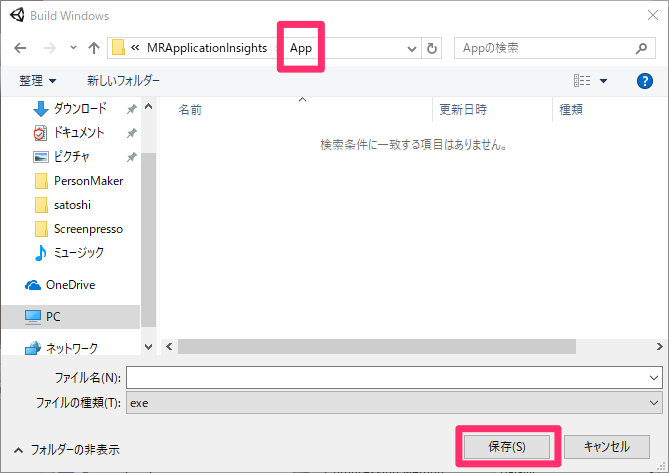
この後の手順についてはこちらを参照してください。
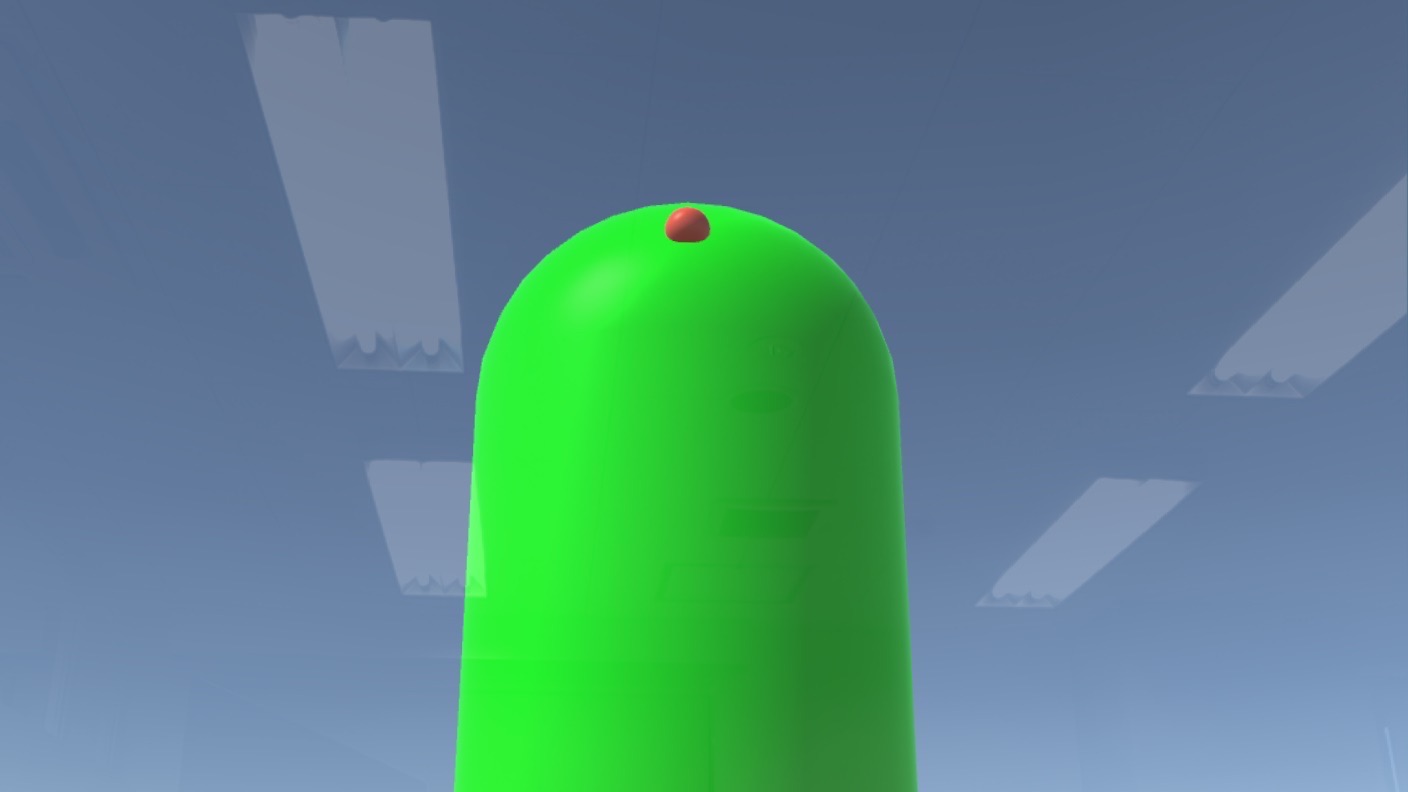
HoloLensで実行した時の様子です。
以上となります。 お疲れ様でした。